If a laptop takes several minutes to start, freezes while opening programs or constantly shows a busy disk, storage may be the bottleneck. Replacing an old hard disk with a solid-state drive is often the most noticeable upgrade for an otherwise usable computer.
How SSDs and hard drives differ
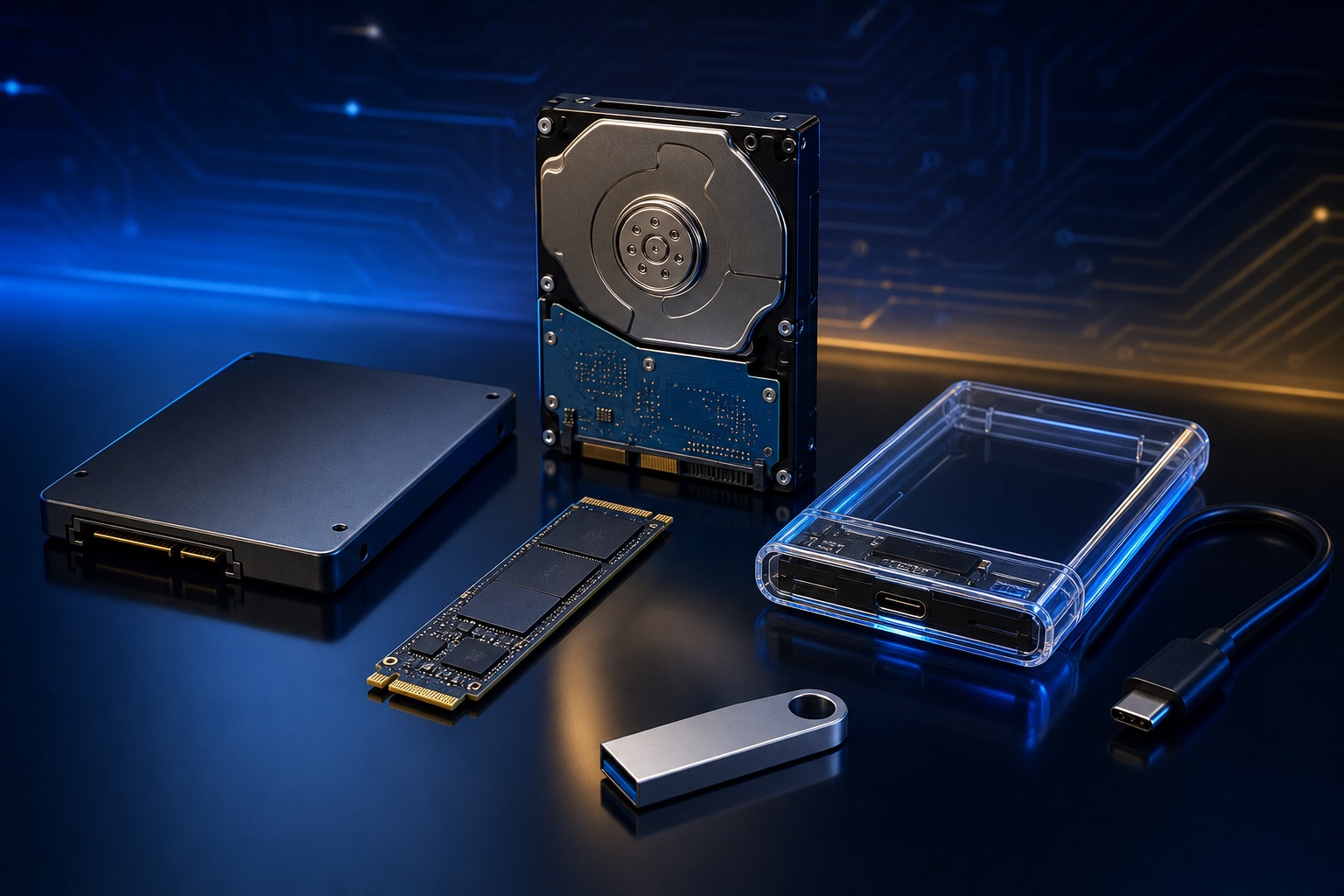
A hard disk drive uses spinning platters and moving heads. An SSD stores data electronically with no moving parts. That makes an SSD quieter, more resistant to everyday movement and dramatically faster when starting Windows or opening applications.
- SATA SSDs suit many older laptops and desktops
- M.2 NVMe SSDs offer higher speeds in compatible systems
- Hard drives remain useful for low-cost bulk storage and backups
What to check before buying
The correct drive depends on physical size, connector type, supported interface and desired capacity. An M.2 slot does not automatically support every M.2 drive, so the laptop model and motherboard specification should be confirmed first.
- Drive format: 2.5-inch SATA or M.2
- M.2 protocol: SATA or NVMe
- Required capacity and available backup space
- Whether Windows and files will be cloned or freshly installed
An upgrade should include health checks
Before transferring data, check the old drive for errors and verify that important files are backed up. Cleaning the cooling system, checking memory and updating the operating system can make the result more reliable.
Final takeaway
For most slow laptops still in good physical condition, a correctly matched SSD delivers a bigger everyday improvement than many more expensive upgrades.